> ## Documentation Index
> Fetch the complete documentation index at: https://docs.corvic.ai/llms.txt
> Use this file to discover all available pages before exploring further.
# Data Sources
> Upload and manage data sources in Corvic AI
Data sources are the foundation of your Corvic AI workflows. Corvic provides several ways to bring in your data — file uploads, live data connectors, and web search from the source menu, plus programmatic fetching from any external API — so you can work with both structured and unstructured data from virtually any source.
## Create Data Sources
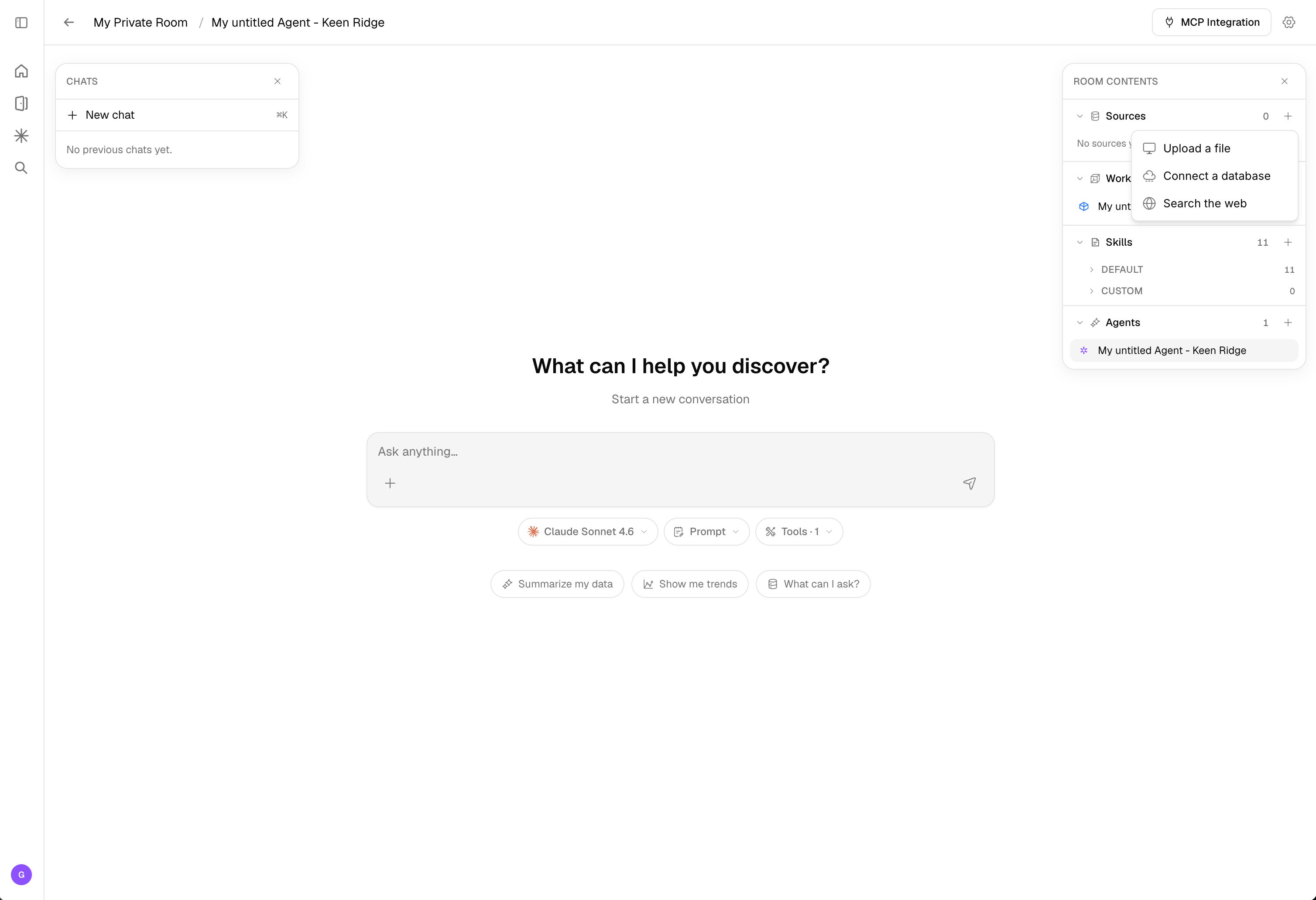
To add a data source, click the "+" button next to "Sources" in your data room. You'll see three options:
 ## Data Connectors
Connect directly to external storage and data platforms without moving or duplicating your data. Corvic supports the following connector providers:
* **Amazon S3** — Pull files from S3 buckets
* **Azure Blob Storage** — Connect to Azure containers
* **Snowflake** — Query data warehouses directly
* **Google Cloud Storage** — Access GCS buckets
To set up a connector, an admin must first configure the integration through the [Data Connectors section](/features/admin-console#data-connectors) in the Admin Console. Once validated, select "Data Connector" from the source creation menu, choose your provider, and specify a path:
* End the path with `/` to pull data from a folder
* Enter a filename (without extension) to upload a specific file
* Enter `*` to connect everything in a folder and its subfolders
You can set a **Sync Frequency** when creating a data source to automatically pull new data from your connector at a chosen interval.
## File Upload
Upload files directly from your local system. Select "File Upload" from the source creation menu, give your data source a descriptive name, and choose the data type (Structured or Unstructured). For the full list of supported formats, see [Data Types](/features/data-types).
Drag and drop your files or click "Choose File" to browse. The maximum file size per upload is **1 GiB**, with a total room storage limit of **5 GiB**.
Upload time varies based on network capacity and file size. Large files (GiB-scale) may take several minutes to upload and ingest.
## Web Source
Search the web and extract structured data directly into Corvic — no manual data collection needed. Select "Web Search" from the source creation menu and describe what you're looking for in plain language.
Corvic's agent will search the web using your natural language query, extract the relevant information, and create structured tables with a desired output schema. Use the **Suggest Schema** button to let Corvic recommend a table structure based on your query, or define your own.
Web Source is ideal for enriching your existing data with external information — for example, pulling market data, company profiles, or industry benchmarks without leaving the platform.
## Fetch from an API
Beyond the source-creation menu, you can pull data directly from any external API using the **Python** action on the [Workflow](/features/workflows) canvas. The agent's `execute_python` step can call a service and load the response straight into a Corvic Table — useful for live or on-demand data that isn't a file or a configured connector.
Credentials are managed through the [API Secret Vault](/features/api-secret-vault): connect a service once, then reference it by name in code. Corvic's proxy injects the secret into the request, so your API keys never appear in the code, logs, or chat history. The catalog includes one-click presets for 35+ services (Crunchbase, PubMed, Polygon.io, and more), or you can add any custom HTTPS origin.
This is the most flexible way to source data — anything reachable over an HTTP API can be fetched and turned into a table for your workflows and agents.
## Incremental Uploads
Additional files can be added to an existing data source via the "Add Files" button. New files must match the original data source's file type. This allows you to continuously grow your data sources as new data becomes available.
## Related Documentation
Learn about creating and managing data rooms.
Use data sources in your workflows.
Create Corvic Tables from your data sources for distributed processing.
Configure data connectors in the admin console.
Connect external APIs to enrich and source data.
## Data Connectors
Connect directly to external storage and data platforms without moving or duplicating your data. Corvic supports the following connector providers:
* **Amazon S3** — Pull files from S3 buckets
* **Azure Blob Storage** — Connect to Azure containers
* **Snowflake** — Query data warehouses directly
* **Google Cloud Storage** — Access GCS buckets
To set up a connector, an admin must first configure the integration through the [Data Connectors section](/features/admin-console#data-connectors) in the Admin Console. Once validated, select "Data Connector" from the source creation menu, choose your provider, and specify a path:
* End the path with `/` to pull data from a folder
* Enter a filename (without extension) to upload a specific file
* Enter `*` to connect everything in a folder and its subfolders
You can set a **Sync Frequency** when creating a data source to automatically pull new data from your connector at a chosen interval.
## File Upload
Upload files directly from your local system. Select "File Upload" from the source creation menu, give your data source a descriptive name, and choose the data type (Structured or Unstructured). For the full list of supported formats, see [Data Types](/features/data-types).
Drag and drop your files or click "Choose File" to browse. The maximum file size per upload is **1 GiB**, with a total room storage limit of **5 GiB**.
Upload time varies based on network capacity and file size. Large files (GiB-scale) may take several minutes to upload and ingest.
## Web Source
Search the web and extract structured data directly into Corvic — no manual data collection needed. Select "Web Search" from the source creation menu and describe what you're looking for in plain language.
Corvic's agent will search the web using your natural language query, extract the relevant information, and create structured tables with a desired output schema. Use the **Suggest Schema** button to let Corvic recommend a table structure based on your query, or define your own.
Web Source is ideal for enriching your existing data with external information — for example, pulling market data, company profiles, or industry benchmarks without leaving the platform.
## Fetch from an API
Beyond the source-creation menu, you can pull data directly from any external API using the **Python** action on the [Workflow](/features/workflows) canvas. The agent's `execute_python` step can call a service and load the response straight into a Corvic Table — useful for live or on-demand data that isn't a file or a configured connector.
Credentials are managed through the [API Secret Vault](/features/api-secret-vault): connect a service once, then reference it by name in code. Corvic's proxy injects the secret into the request, so your API keys never appear in the code, logs, or chat history. The catalog includes one-click presets for 35+ services (Crunchbase, PubMed, Polygon.io, and more), or you can add any custom HTTPS origin.
This is the most flexible way to source data — anything reachable over an HTTP API can be fetched and turned into a table for your workflows and agents.
## Incremental Uploads
Additional files can be added to an existing data source via the "Add Files" button. New files must match the original data source's file type. This allows you to continuously grow your data sources as new data becomes available.
## Related Documentation
Learn about creating and managing data rooms.
Use data sources in your workflows.
Create Corvic Tables from your data sources for distributed processing.
Configure data connectors in the admin console.
Connect external APIs to enrich and source data.