> ## Documentation Index
> Fetch the complete documentation index at: https://docs.corvic.ai/llms.txt
> Use this file to discover all available pages before exploring further.
# Rooms
> Private, isolated workspaces that keep your data, agents, and insights contained.
Rooms are private workspaces in Corvic. Everything you bring into a room — your data sources, Corvic Tables, embedding spaces, and the agents that reason over them — stays **contained within that room** and accessible only to the people and agents you've granted access to. Rooms are the boundary that makes Corvic safe to use on sensitive enterprise data.
## Privacy is the point
Most teams can't put their most valuable data into an AI tool because they can't control where it goes or who — or what — can see it. Rooms solve that. Each room is a sealed workspace, so you can confidently work with confidential documents, financials, customer records, and proprietary models without that data leaking across projects, teams, or tenants.
Data, tables, spaces, and agents in one room are never accessible from another room.
An agent only reasons over the data in its own room — it can't reach data it wasn't given.
Only the users you invite to a room can see its contents. Access is yours to grant and revoke.
Your organization's data is isolated from every other tenant on the platform.
Because each room is fully isolated, a question asked in one room can never be answered using data from another. This containment is what lets you separate work by sensitivity, client, department, or project with confidence.
## Creating a Room
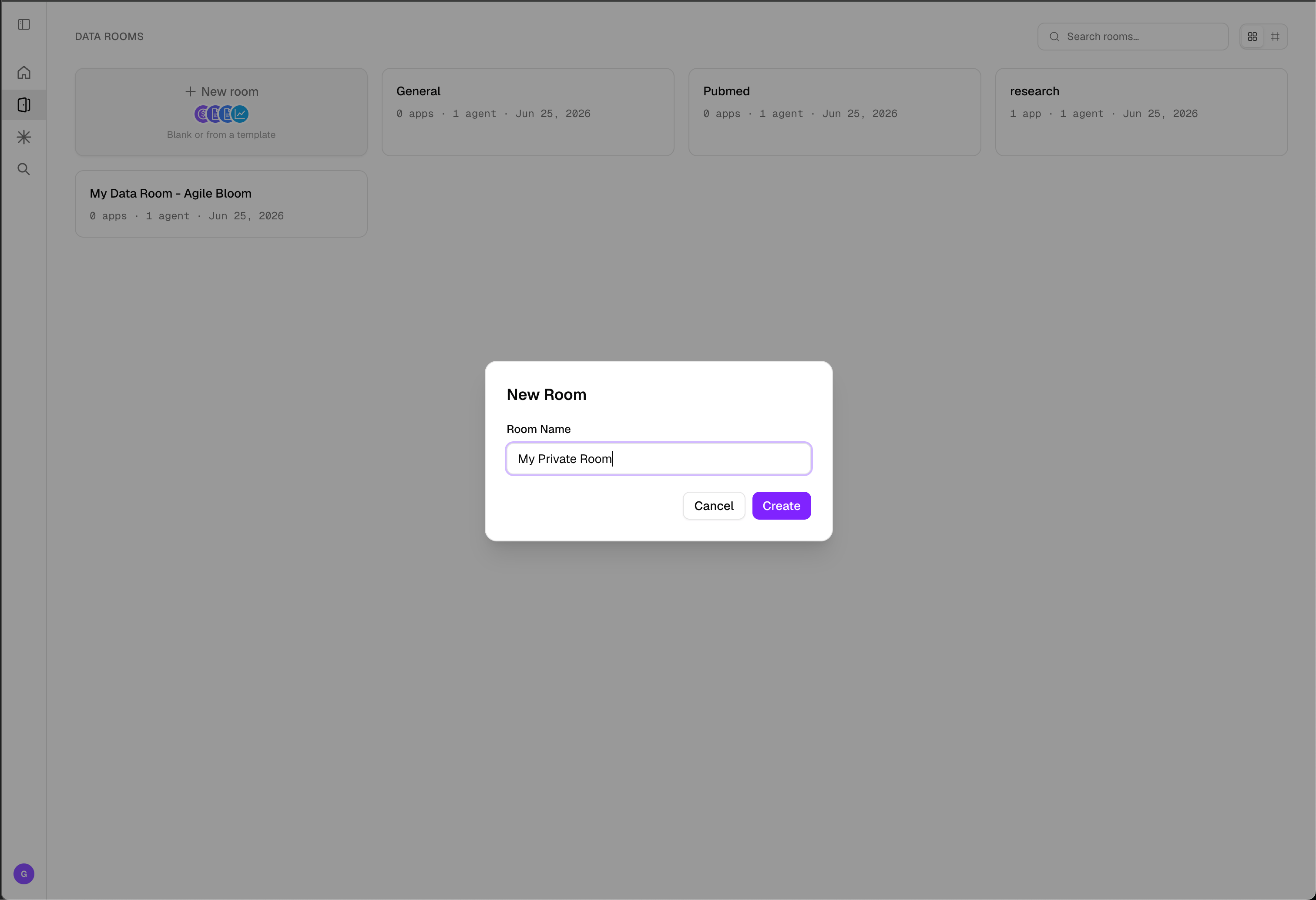
Once you are signed in to your tenant successfully, click on "New Room", provide a room name and click "Add" to create your new data room.
 Want a head start? Choose a [Room Template](/features/room-templates) to launch a room that already includes a pre-configured agent, skills, and starter questions for use cases like venture capital, patent analysis, financial research, and lead generation.
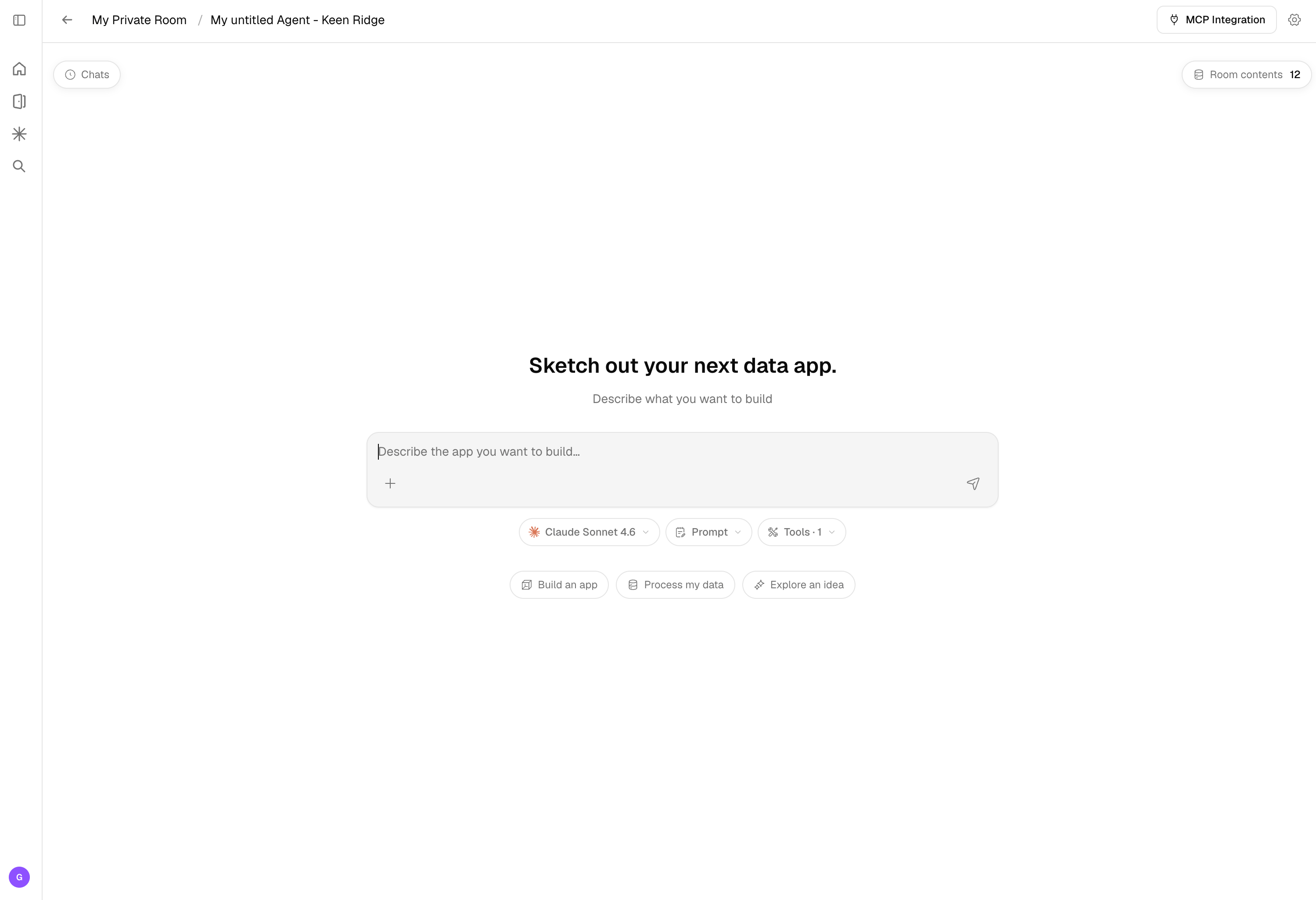
You will be automatically redirected to the newly-created data room.
Want a head start? Choose a [Room Template](/features/room-templates) to launch a room that already includes a pre-configured agent, skills, and starter questions for use cases like venture capital, patent analysis, financial research, and lead generation.
You will be automatically redirected to the newly-created data room.
 ## What You Can Do in a Room
Within the privacy boundary of a room, you have everything you need to turn data into intelligence:
* **Add data** by uploading files or connecting to storage buckets, databases, and live web sources.
* **Create agents** that interact with your data and generate grounded insights.
* **Create workflows** to process, transform, and operationalize your data.
* **Explore data** to investigate, query, and surface insights.
* **Create skills** that extend what your agents can do.
All of it stays inside the room.
## Organizing with Rooms
Because rooms are isolated, they're a natural way to structure work while keeping data separated:
* **By sensitivity** — keep confidential or regulated data in its own room.
* **By client or customer** — give each engagement a dedicated, walled-off workspace.
* **By team or department** — let finance, legal, and research operate independently.
* **By project** — spin up a room per initiative without cross-contaminating data.
Users and agents only ever see the room they're working in, so separation is maintained automatically — there's no shared pool of data to leak across boundaries.
## Related Documentation
Control who can access a room and what they can do.
Launch a pre-built room with a ready-to-use agent.
The room experience where the agent explores data and builds workflows.
Learn how to upload and manage data sources.
## What You Can Do in a Room
Within the privacy boundary of a room, you have everything you need to turn data into intelligence:
* **Add data** by uploading files or connecting to storage buckets, databases, and live web sources.
* **Create agents** that interact with your data and generate grounded insights.
* **Create workflows** to process, transform, and operationalize your data.
* **Explore data** to investigate, query, and surface insights.
* **Create skills** that extend what your agents can do.
All of it stays inside the room.
## Organizing with Rooms
Because rooms are isolated, they're a natural way to structure work while keeping data separated:
* **By sensitivity** — keep confidential or regulated data in its own room.
* **By client or customer** — give each engagement a dedicated, walled-off workspace.
* **By team or department** — let finance, legal, and research operate independently.
* **By project** — spin up a room per initiative without cross-contaminating data.
Users and agents only ever see the room they're working in, so separation is maintained automatically — there's no shared pool of data to leak across boundaries.
## Related Documentation
Control who can access a room and what they can do.
Launch a pre-built room with a ready-to-use agent.
The room experience where the agent explores data and builds workflows.
Learn how to upload and manage data sources.