> ## Documentation Index
> Fetch the complete documentation index at: https://docs.corvic.ai/llms.txt
> Use this file to discover all available pages before exploring further.
# Web Augment
> Enrich Corvic Tables with data from web searches
## Overview
Web Augment is an augmentation method that enriches your Corvic Tables with information gathered from web searches. Instead of manually researching and adding data, describe what you need in natural language and Corvic will search the web, extract relevant information, and add it to your table — all automatically.
This is ideal for enriching datasets with external context such as company information, market data, product details, competitor analysis, or any publicly available information.
## Method Selection
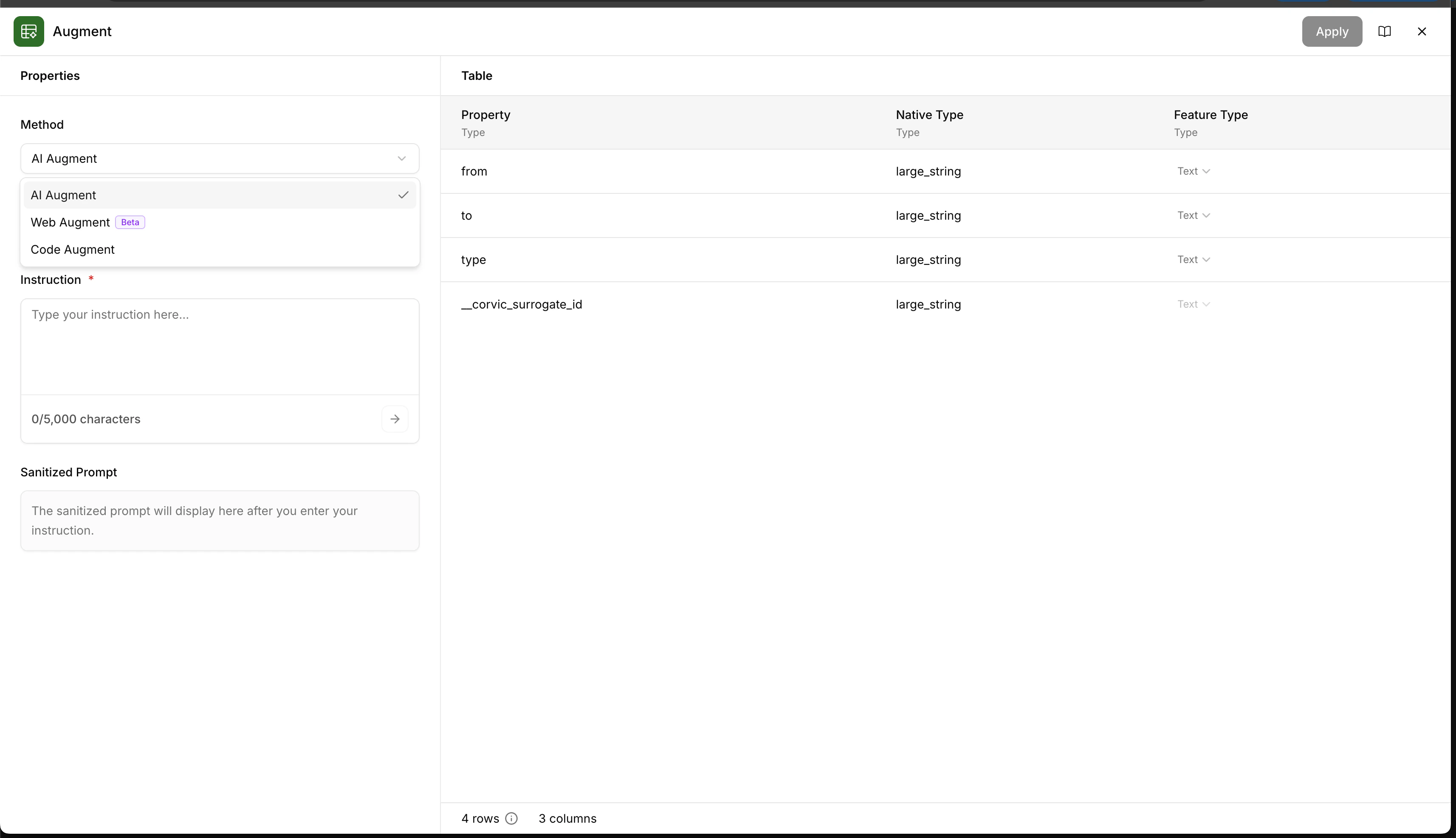
In the Augment action, select **Web Augment** from the Method dropdown. The Augment action supports three methods:
* **AI Augment** — Use LLMs to transform and enrich data
* **Web Augment** Beta — Enrich data using web search results
* **Code Augment** — Use code-based transformations
 ## Configuration
### Web Processor
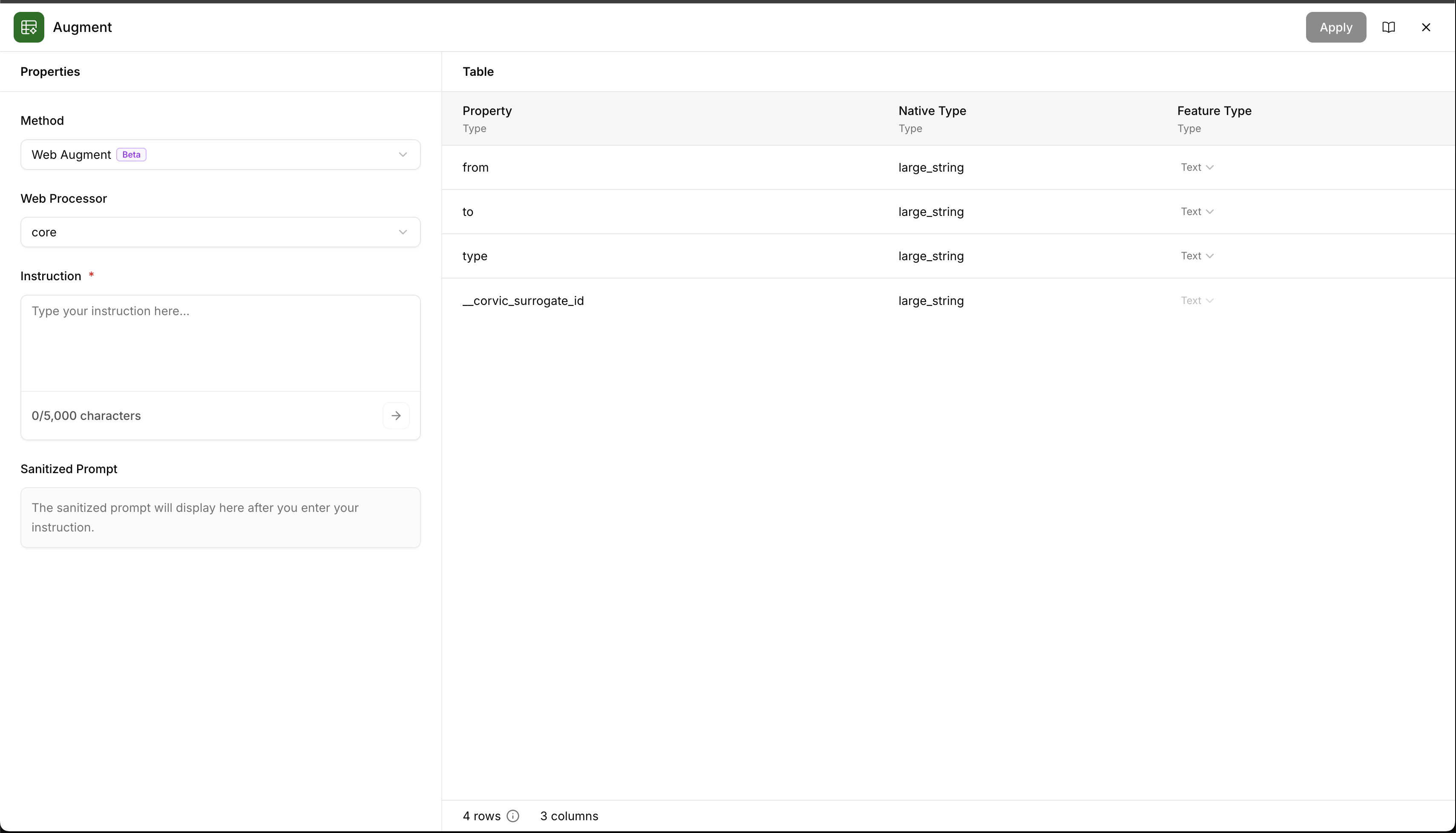
Choose a web processor tier based on your needs:
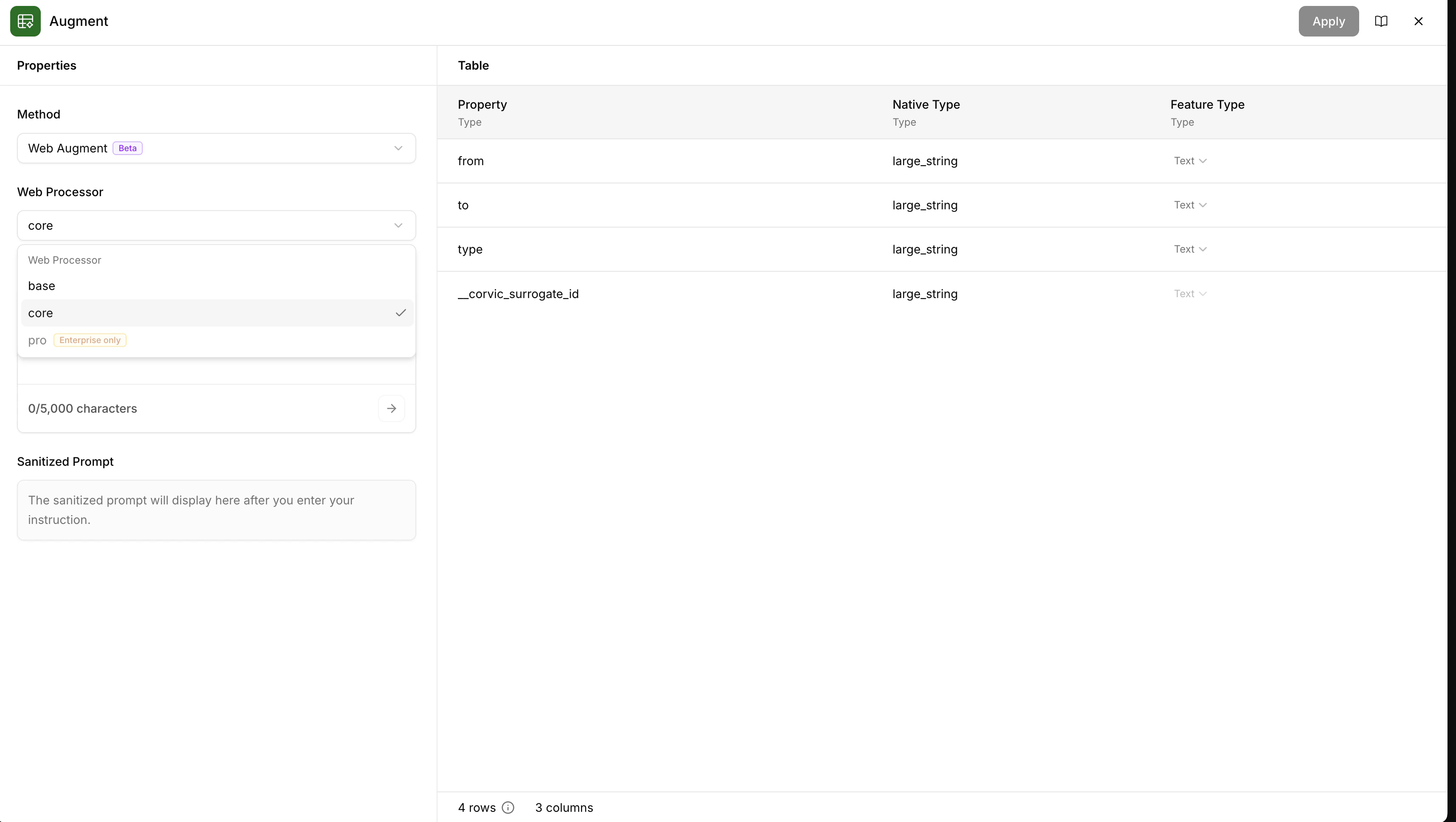
* **base** — Basic web search and extraction
* **core** — Enhanced processing with better extraction quality
* **pro** — Advanced processing with highest quality results (Enterprise only)
### Instruction
Provide a natural language instruction describing what information you want to extract from the web for each row in your table. Be specific about what data points you need — the more precise your instruction, the better the results.
The **Sanitized Prompt** section shows a preview of the processed instruction that will be sent to the web search agent.
## Configuration
### Web Processor
Choose a web processor tier based on your needs:
* **base** — Basic web search and extraction
* **core** — Enhanced processing with better extraction quality
* **pro** — Advanced processing with highest quality results (Enterprise only)
### Instruction
Provide a natural language instruction describing what information you want to extract from the web for each row in your table. Be specific about what data points you need — the more precise your instruction, the better the results.
The **Sanitized Prompt** section shows a preview of the processed instruction that will be sent to the web search agent.
 ### Processor Selection
Expand the Web Processor dropdown to select your preferred tier. The table preview on the right shows the properties, native types, and feature types of your input Corvic Table so you can reference the correct columns in your instruction.
### Processor Selection
Expand the Web Processor dropdown to select your preferred tier. The table preview on the right shows the properties, native types, and feature types of your input Corvic Table so you can reference the correct columns in your instruction.
 ## Parameters
| Parameter | Type | Required | Description |
| ---------------- | -------------- | -------------- | ----------------------------------------------------------------------------------------------------------------------------------------------------------------------------------- |
| `input` | `Corvic Table` | Yes | The Corvic Table to enrich with web data. |
| `web_processor` | `string` | Yes | The processing tier: `base`, `core`, or `pro` (Enterprise only). |
| `instruction` | `string` | Yes | Natural language description of what web information to search for and add to each row. Up to 5,000 characters. |
| `input_columns` | `array` | Auto-generated | Input columns from the Corvic Table that will be used as context for the web search. Automatically determined based on your instruction. |
| `output_columns` | `array` | Auto-generated | Output columns that will be added to the result table. Automatically generated based on your instruction — each column includes a name and description of the data it will contain. |
## Usage Example
To use Web Augment in a Workflow:
1. Add your Corvic Table to the Workflow canvas
2. Click the "+" button next to the Corvic Table
3. Select "Augment" from the actions menu
4. Choose **Web Augment** from the Method dropdown
5. Select a Web Processor tier (base, core, or pro)
6. Write an instruction describing what information to search for
7. Review the sanitized prompt
8. Click **Apply** and run the Workflow
## Related Documentation
Augment data using LLM-based transformations.
Augment data using code-based transformations.
Learn how to build workflows using Workflows.
Understand how Corvic Tables work.
## Parameters
| Parameter | Type | Required | Description |
| ---------------- | -------------- | -------------- | ----------------------------------------------------------------------------------------------------------------------------------------------------------------------------------- |
| `input` | `Corvic Table` | Yes | The Corvic Table to enrich with web data. |
| `web_processor` | `string` | Yes | The processing tier: `base`, `core`, or `pro` (Enterprise only). |
| `instruction` | `string` | Yes | Natural language description of what web information to search for and add to each row. Up to 5,000 characters. |
| `input_columns` | `array` | Auto-generated | Input columns from the Corvic Table that will be used as context for the web search. Automatically determined based on your instruction. |
| `output_columns` | `array` | Auto-generated | Output columns that will be added to the result table. Automatically generated based on your instruction — each column includes a name and description of the data it will contain. |
## Usage Example
To use Web Augment in a Workflow:
1. Add your Corvic Table to the Workflow canvas
2. Click the "+" button next to the Corvic Table
3. Select "Augment" from the actions menu
4. Choose **Web Augment** from the Method dropdown
5. Select a Web Processor tier (base, core, or pro)
6. Write an instruction describing what information to search for
7. Review the sanitized prompt
8. Click **Apply** and run the Workflow
## Related Documentation
Augment data using LLM-based transformations.
Augment data using code-based transformations.
Learn how to build workflows using Workflows.
Understand how Corvic Tables work.