

Get started in three steps
Get your first embedding space running and start deriving insights from your data.Fastest path: start from a template
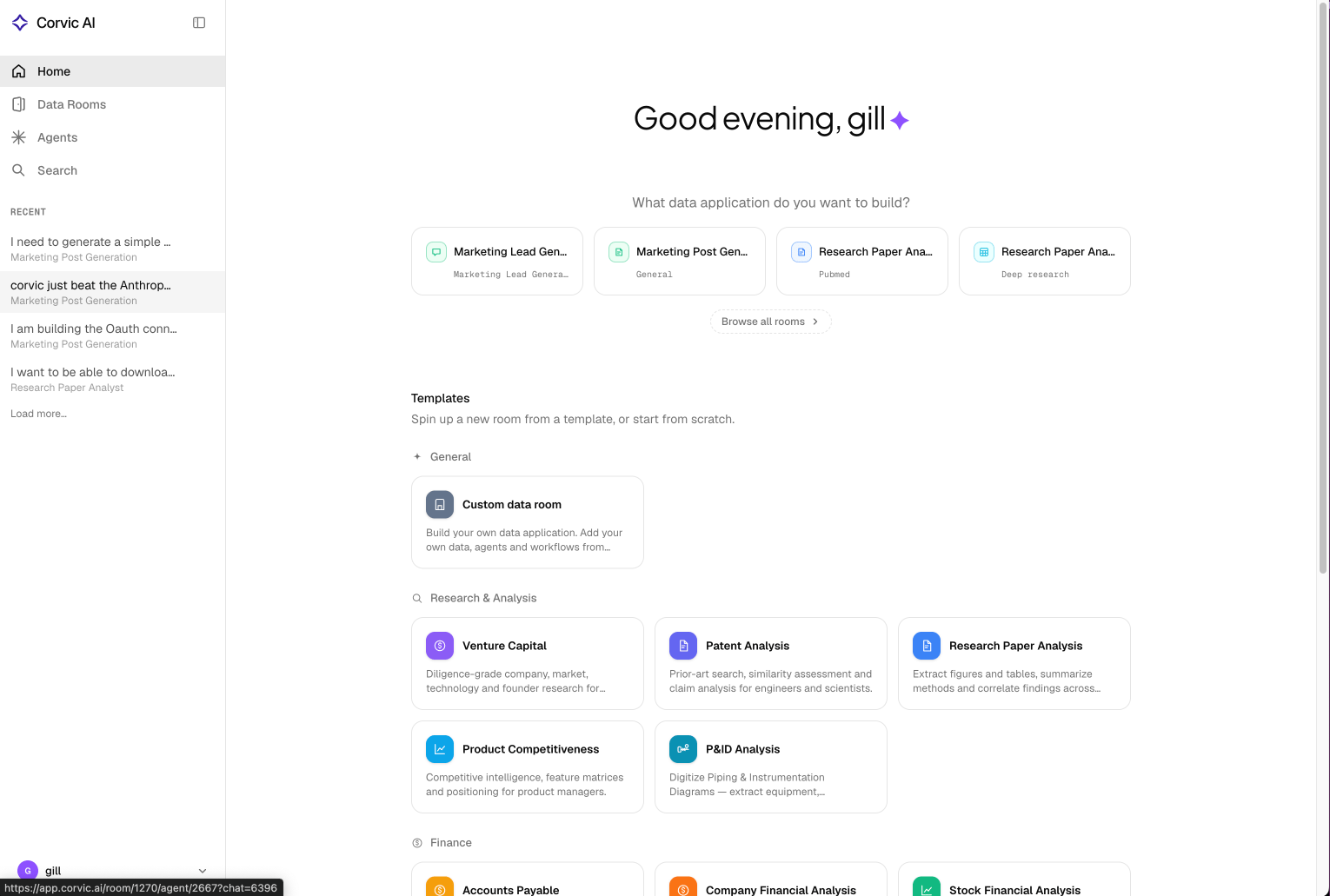
Skip the manual setup. A Room Template launches a room with a
pre-configured agent, skills, and starter questions — just add your data and start asking.
Prefer to build from scratch? Follow the three steps below.
Step 1: Access the Platform
Create an account
Create an account
Visit app.corvic.ai to create your account and access the Corvic Platform.Once you’ve created your account, you’ll have access to your organization dashboard where you can manage users, roles, and data rooms.
Create a Data Room
Create a Data Room
Data Rooms are exclusive workspaces where you can upload and manage your data.
- Navigate to the Rooms section in your dashboard
- Click “Create New Room”
- Give your room a descriptive name
- Your room is now ready for data ingestion
Step 2: Upload and Process Data
Upload Data Sources
Upload Data Sources
Upload your data to the data room:
- Navigate to your data room
- Go to the Data Sources section
- Click the ”+” button next to “Data Sources”
- Upload your data files (supports parquet, PDF, PPTX, TXT, MD, DOCX, HTML, and other formats)
- Wait for the data to be uploaded and processed
Create Workflow
Create Workflow
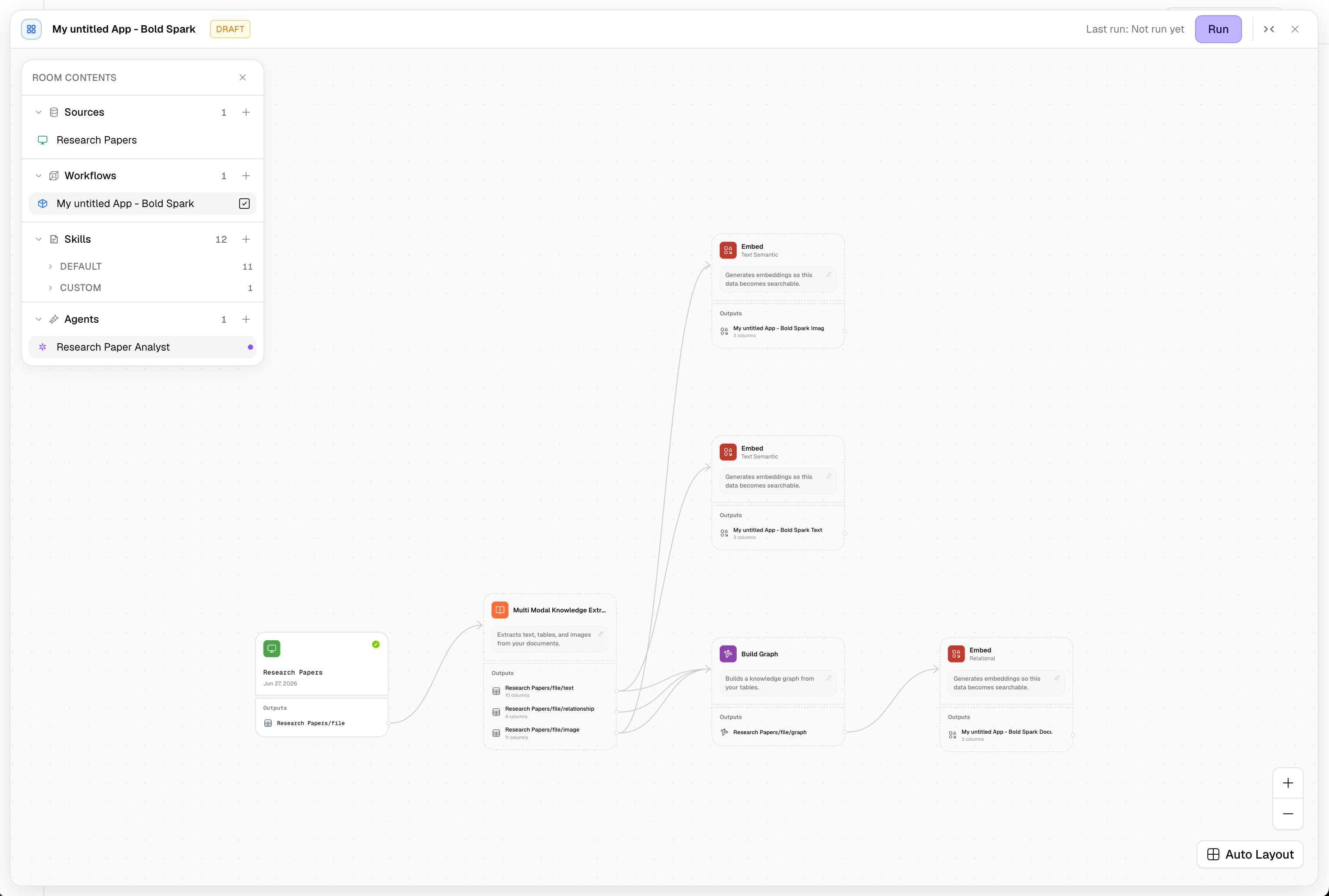
Create a workflow to parse, clean/augment data, and embed it:
- Click “Create Workflow” in your data room
- Give your workflow a name and description
- Drag and drop your data sources onto the canvas
- Click the ”+” button next to the data source to view available actions
- Apply actions to process your data:
- Parse: For unstructured data (extracts textual, structural, and image information)
- Create Database: For structured data (analyzes and generates tabular outputs)
- Create Corvic Tables from the processed data
- Use the Embed action to generate embeddings from your Corvic Tables
- Click “Run” to execute the workflow
Step 3: Create an Agent
Configure an Agent
Configure an Agent
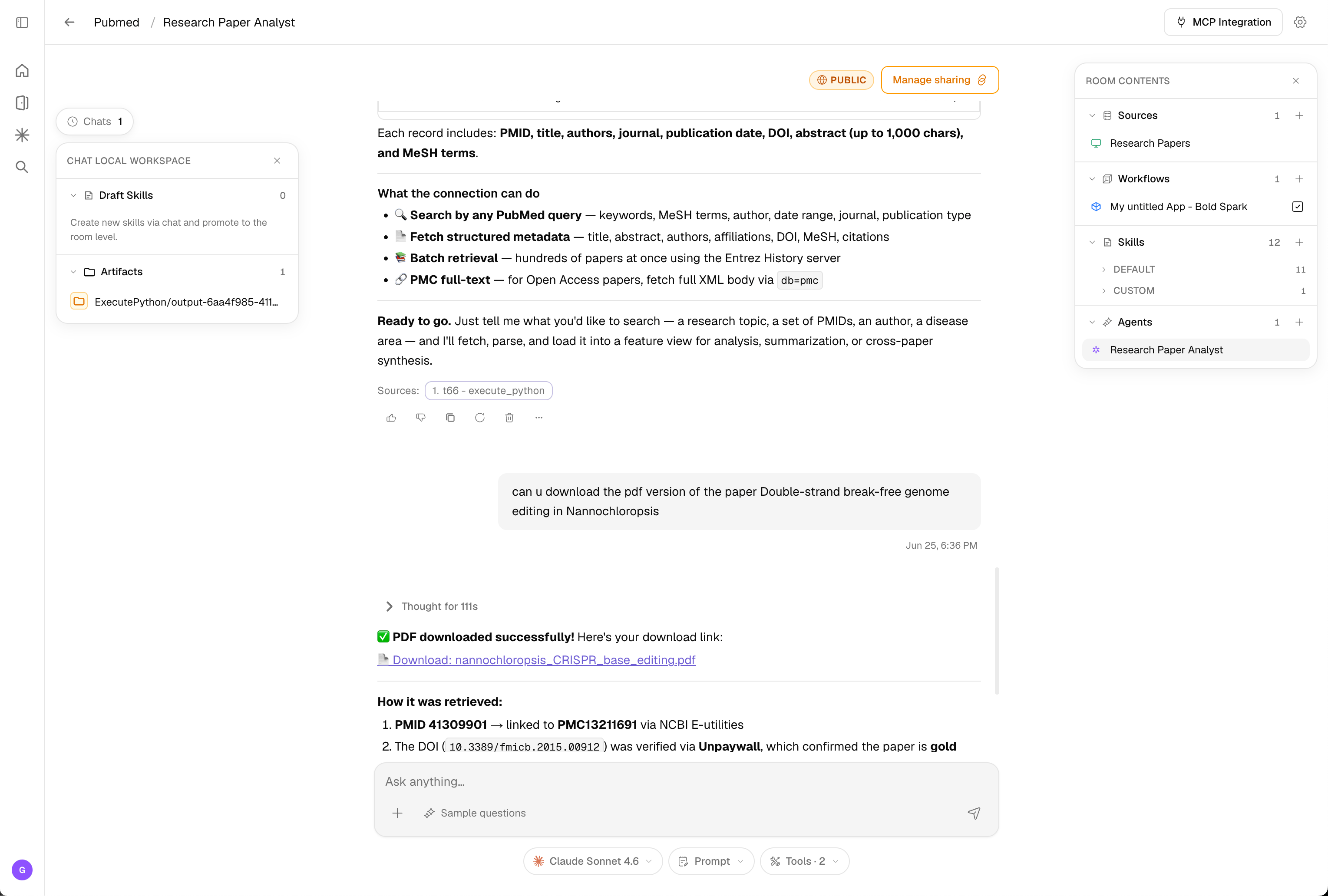
Create an agent to interact with your embeddings:
- Go to Agents in your data room
- Click “Create Agent”
- Select the spaces you want the agent to use
- Configure the LLM parameters
- Add specific instructions for using those spaces
- Save and activate your agent
An Agent plans how to leverage multiple embedding spaces to derive enterprise insights for user queries.
Next steps
Now that you have your first embedding space running, explore these key features:Core Concepts
Learn about Corvic’s Intelligence Composition Platform, architecture, workflows, agents, and administration.
Room Templates
Launch a pre-built room for VC, patent, finance, and more.
Exploration & Workflows
Explore data and build workflows from the room chat.
API Integrations
Integrate Corvic with your existing workflows.
Need help? Check out our full documentation or contact support@corvic.ai.