

Create Data Sources
To add a data source, click the ”+” button next to “Sources” in your data room. You’ll see three options: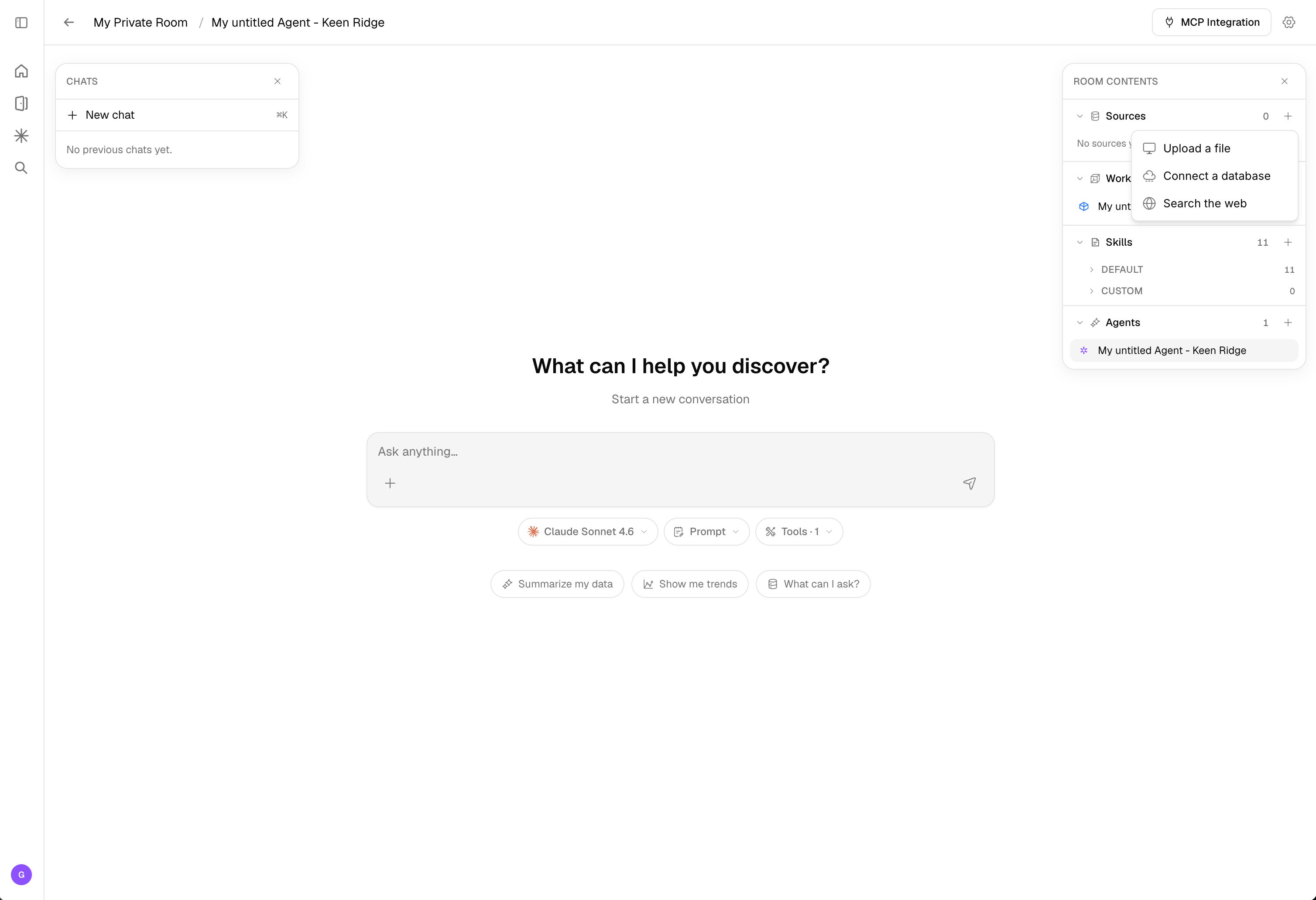
Data Connectors
Connect directly to external storage and data platforms without moving or duplicating your data. Corvic supports the following connector providers:- Amazon S3 — Pull files from S3 buckets
- Azure Blob Storage — Connect to Azure containers
- Snowflake — Query data warehouses directly
- Google Cloud Storage — Access GCS buckets
- End the path with
/to pull data from a folder - Enter a filename (without extension) to upload a specific file
- Enter
*to connect everything in a folder and its subfolders
File Upload
Upload files directly from your local system. Select “File Upload” from the source creation menu, give your data source a descriptive name, and choose the data type (Structured or Unstructured). For the full list of supported formats, see Data Types. Drag and drop your files or click “Choose File” to browse. The maximum file size per upload is 1 GiB, with a total room storage limit of 5 GiB.Web Source
Search the web and extract structured data directly into Corvic — no manual data collection needed. Select “Web Search” from the source creation menu and describe what you’re looking for in plain language. Corvic’s agent will search the web using your natural language query, extract the relevant information, and create structured tables with a desired output schema. Use the Suggest Schema button to let Corvic recommend a table structure based on your query, or define your own.Fetch from an API
Beyond the source-creation menu, you can pull data directly from any external API using the Python action on the Workflow canvas. The agent’sexecute_python step can call a service and load the response straight into a Corvic Table — useful for live or on-demand data that isn’t a file or a configured connector.
Credentials are managed through the API Secret Vault: connect a service once, then reference it by name in code. Corvic’s proxy injects the secret into the request, so your API keys never appear in the code, logs, or chat history. The catalog includes one-click presets for 35+ services (Crunchbase, PubMed, Polygon.io, and more), or you can add any custom HTTPS origin.
Incremental Uploads
Additional files can be added to an existing data source via the “Add Files” button. New files must match the original data source’s file type. This allows you to continuously grow your data sources as new data becomes available.Related Documentation
Rooms
Learn about creating and managing data rooms.
Workflows
Use data sources in your workflows.
Corvic Tables
Create Corvic Tables from your data sources for distributed processing.
Admin Console
Configure data connectors in the admin console.
API Secret Vault
Connect external APIs to enrich and source data.