

Two ways to build a workflow
You can let an agent build a workflow for you, or build one yourself on the canvas. Both produce the same kind of pipeline, and you can refine an agent-built workflow by hand at any time.Built by an agent
As you work through a chat, the agent recognizes repeatable patterns and turns them into a persistent workflow — amortizing common operations to save processing and token cost. See Exploration & Workflows.
Built manually
Assemble a pipeline yourself with drag-and-drop actions on the canvas — no code required. The Builder Chat assistant can also generate steps from a plain-language description.
Create a Workflow
The steps below walk through building a workflow manually on the canvas. Get started by clicking on “Create Workflow”. Give it a name and description that best describe your pipeline.
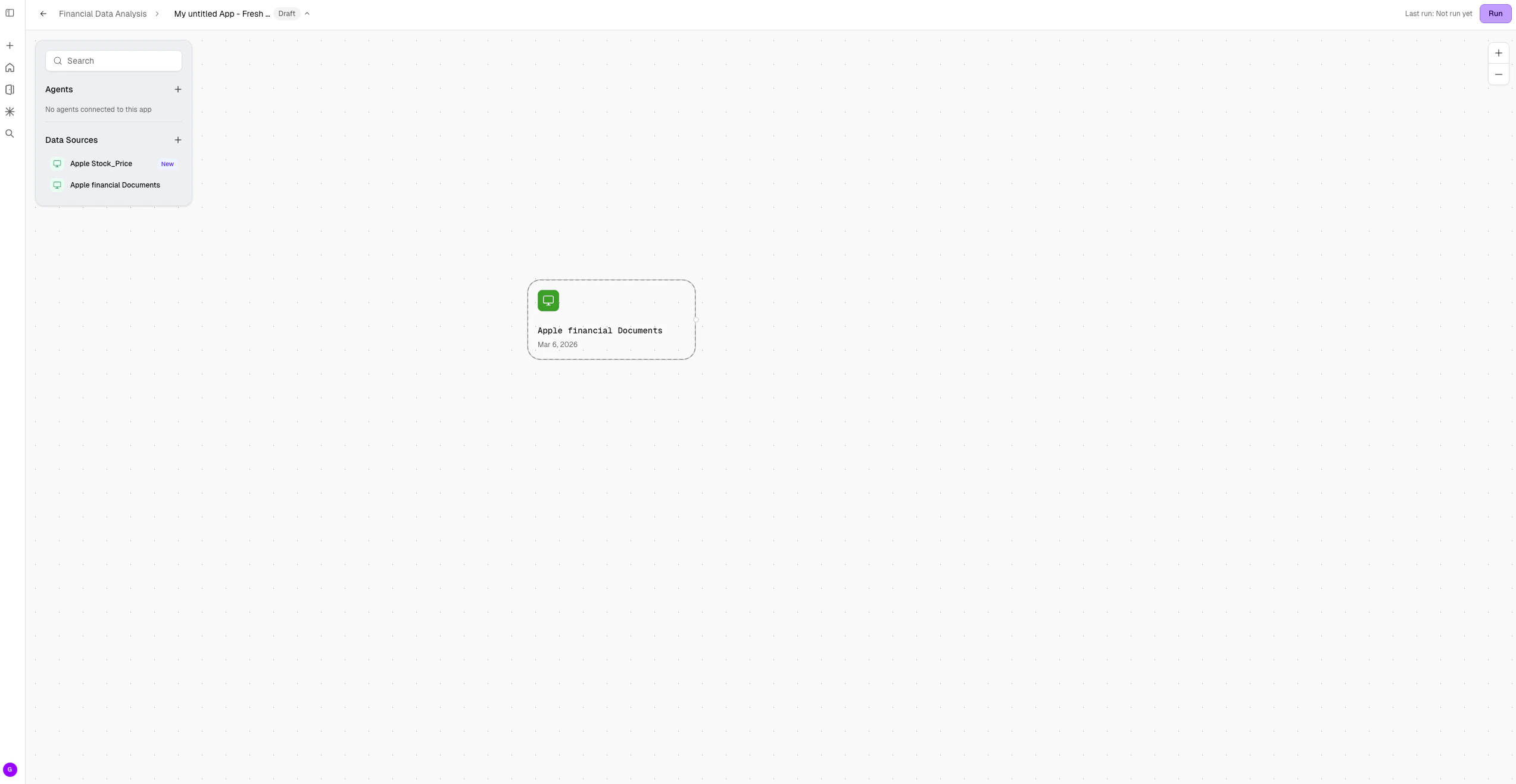
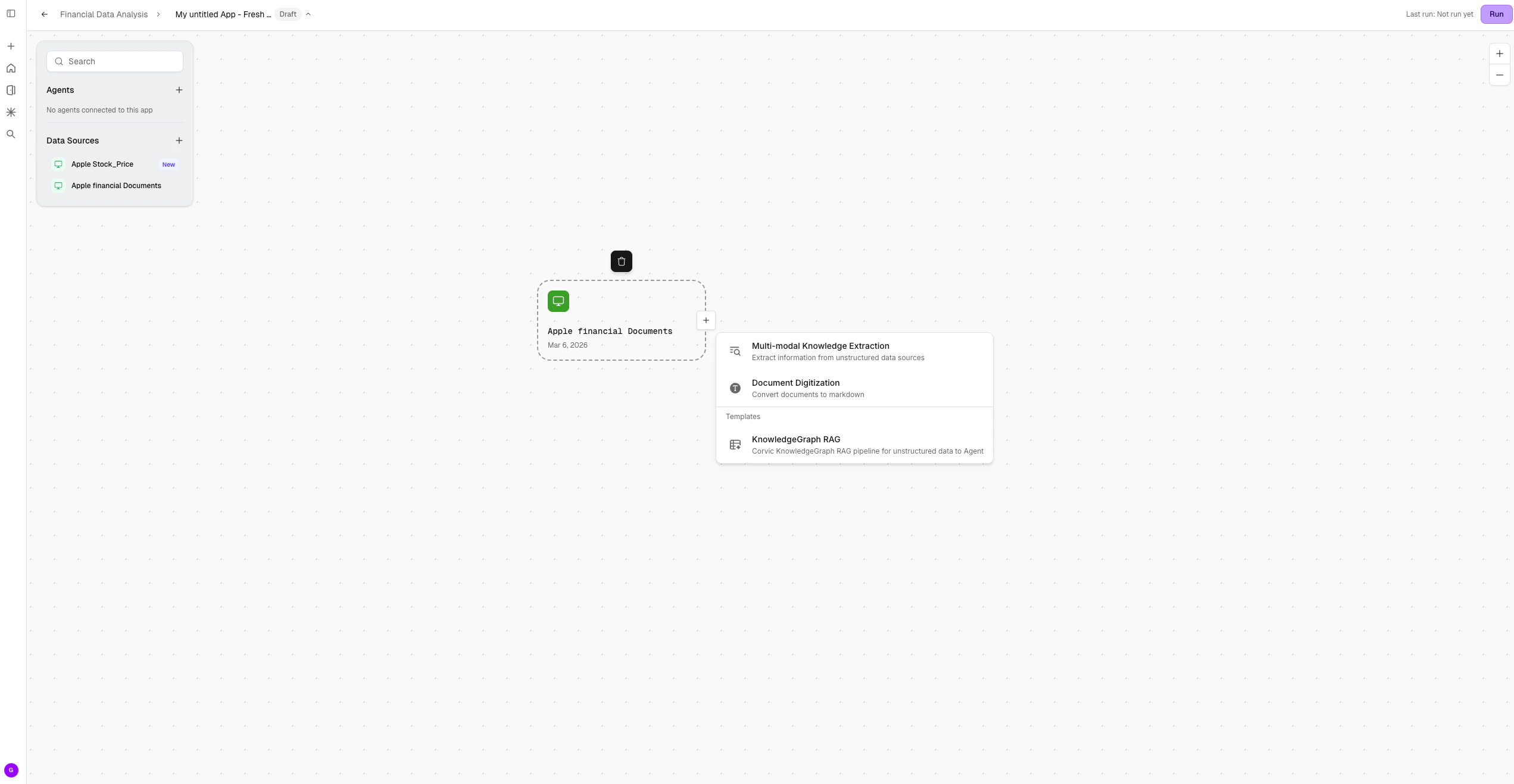
Actions
Actions are user-defined operations that run on data sources to extract meaningful information into tables. They can also be used to generate embeddings. Most action outputs take the form of tables (tabular data), which can then be saved as assets—either Corvic Tables or Spaces.We are showing a few example features here. For all available actions, see the Action Reference.
Multi-modal Knowledge Extraction
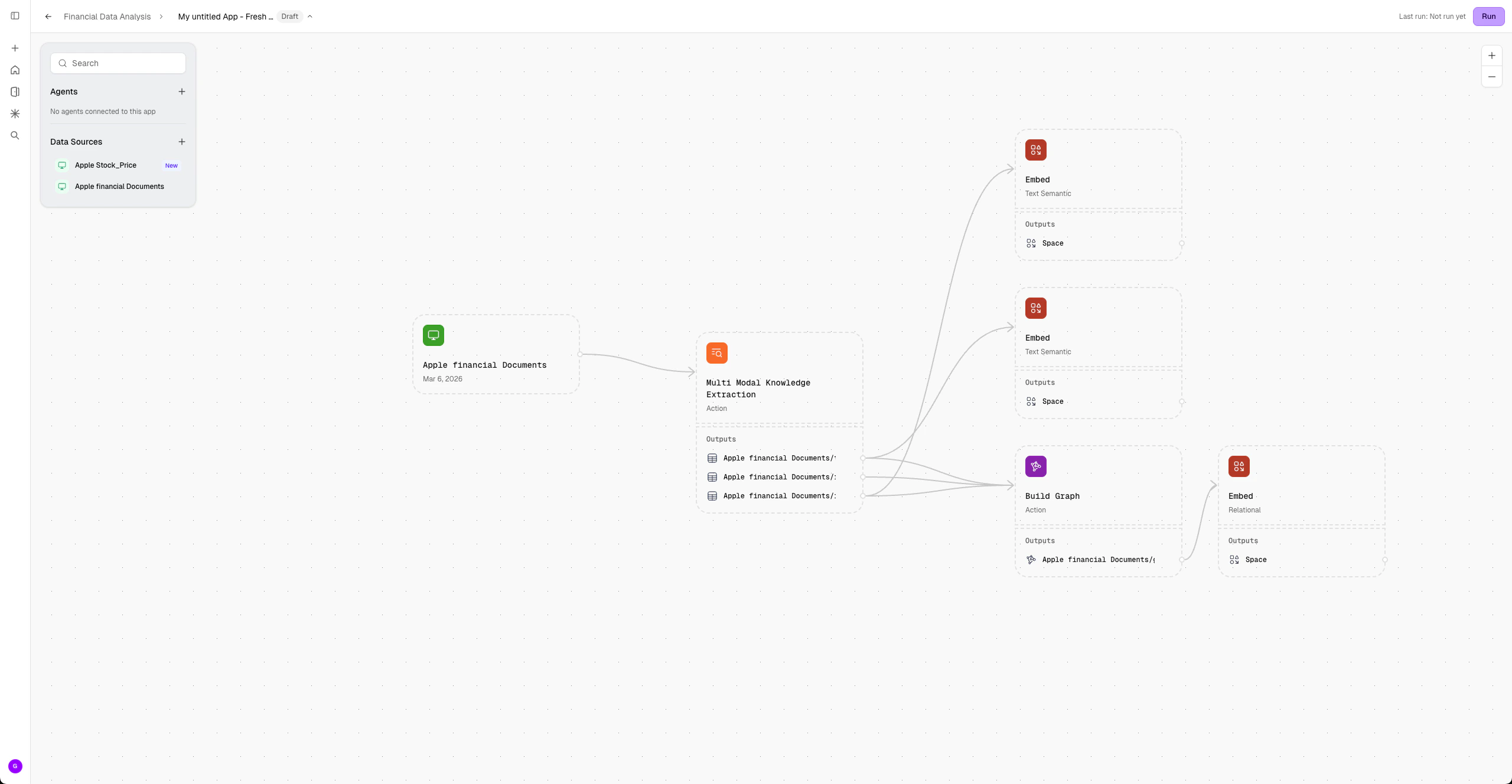
Use this action to analyze unstructured data and automatically generate three tabular outputs containing textual, structural, and image-related information from data sources. This action can only be applied to “Unstructured Type” data sources. Learn more about Multi-modal Knowledge Extraction.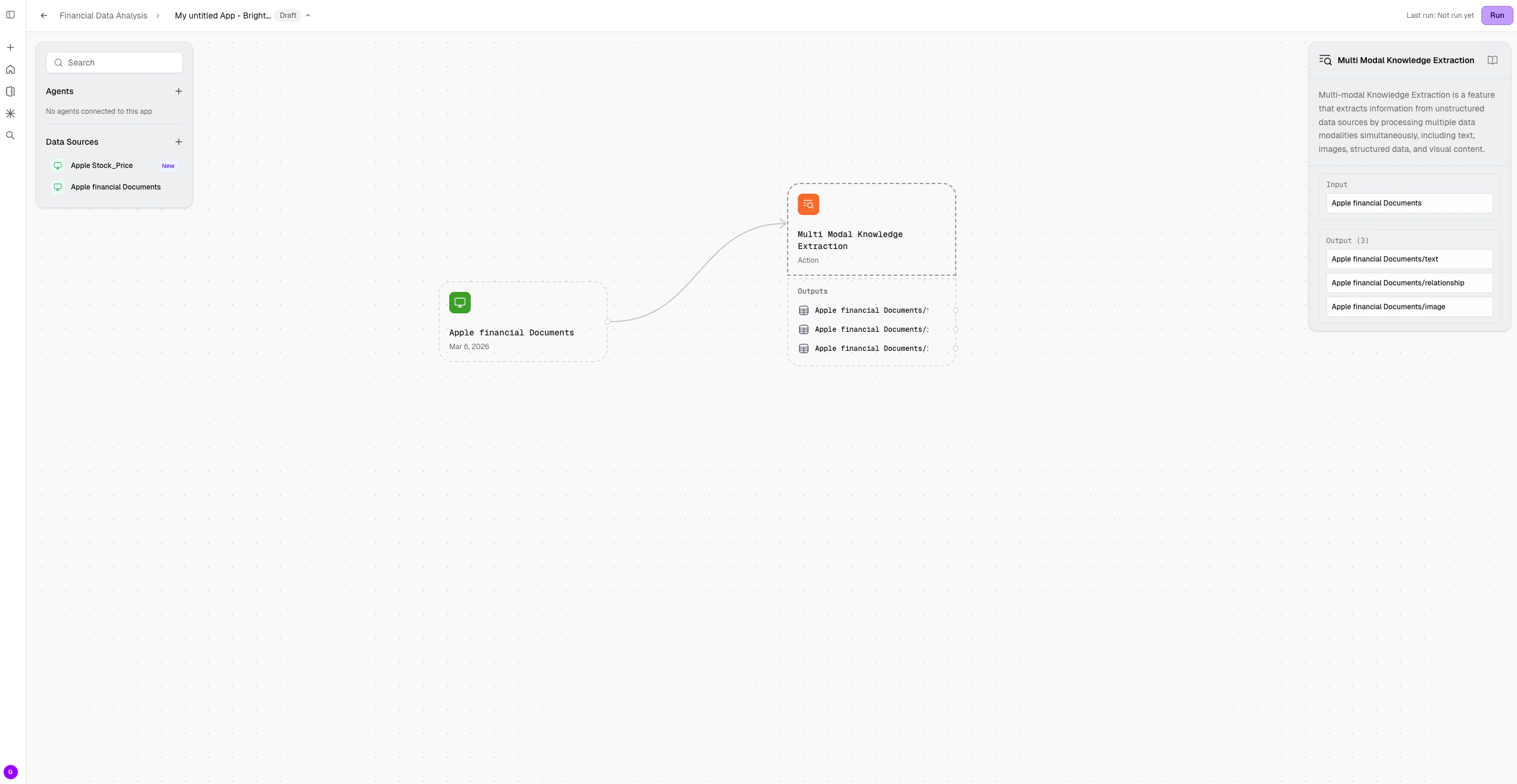
Create Database
Use this action to analyze structured data and automatically generate tabular outputs for each distinct schema found in the source. This action can only be applied to “Structured Type” data sources. After applying the action, click Run on the canvas to view the results. Learn more about Create Database.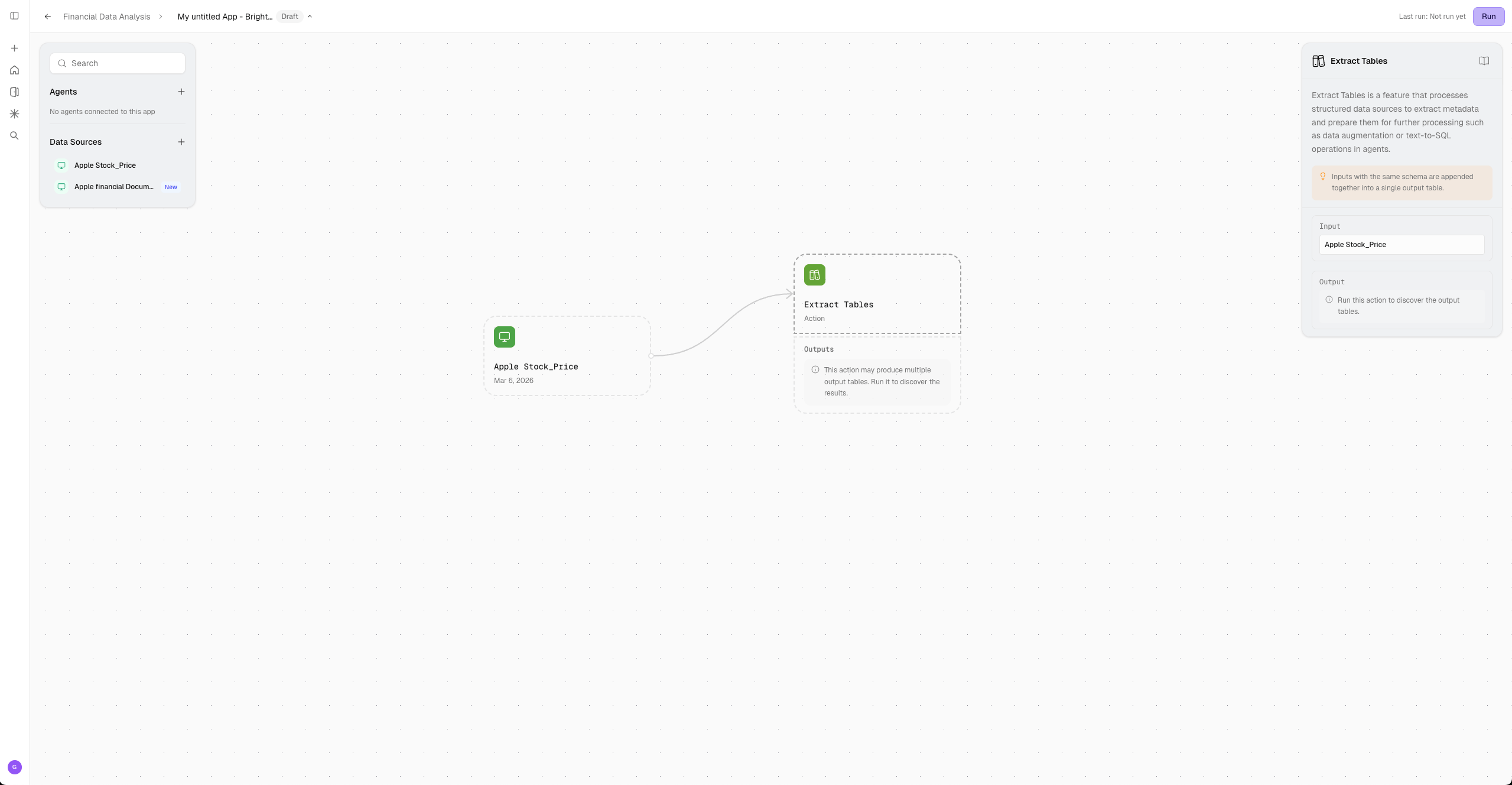
Graph Builder
The Graph Builder action allows users to construct relational graphs from multiple Corvic Table (CT) assets. It can only be applied to Corvic Tables and supports selecting two or more CT inputs at a time. Users can modify the schemas of the selected inputs and dynamically visualize how the graph forms based on the relationships between their tables. At least one input CT must contain a foreign key relationship to another selected CT in order to use this action. The Graph Builder is typically a prerequisite for the Relational Embedding in the Embed action. Learn more about Graph Builder.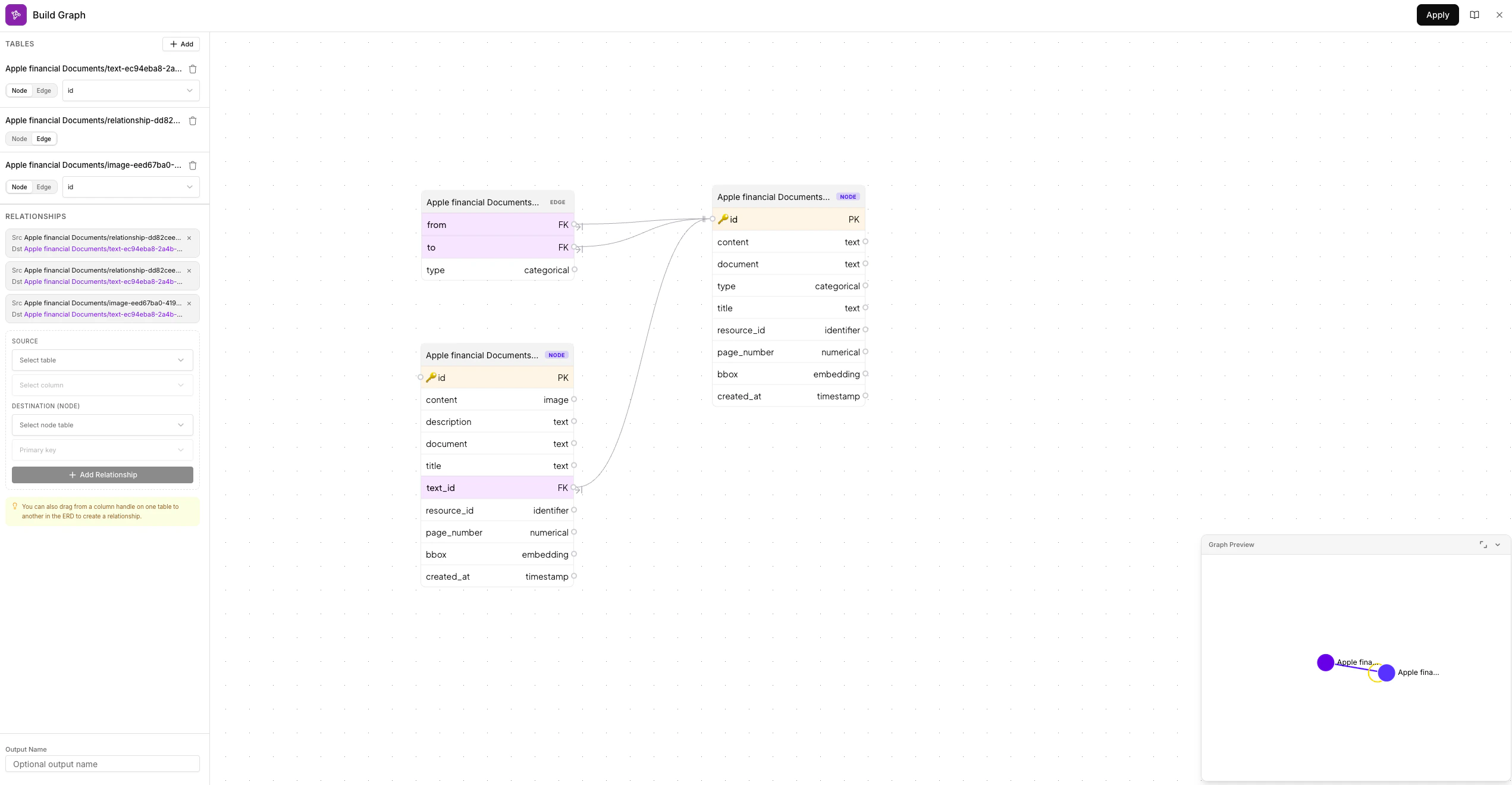
Embed
The Embed action is used to generate embeddings from data and can only be applied to Corvic Table (CT) assets. It supports creating embeddings of various types, including Semantic, Relational, Image, and Tabular. The input for this action is a Corvic Table asset, and the output is a Space asset, which can then be used for downstream analysis or powering agent responses. Learn more about Embed.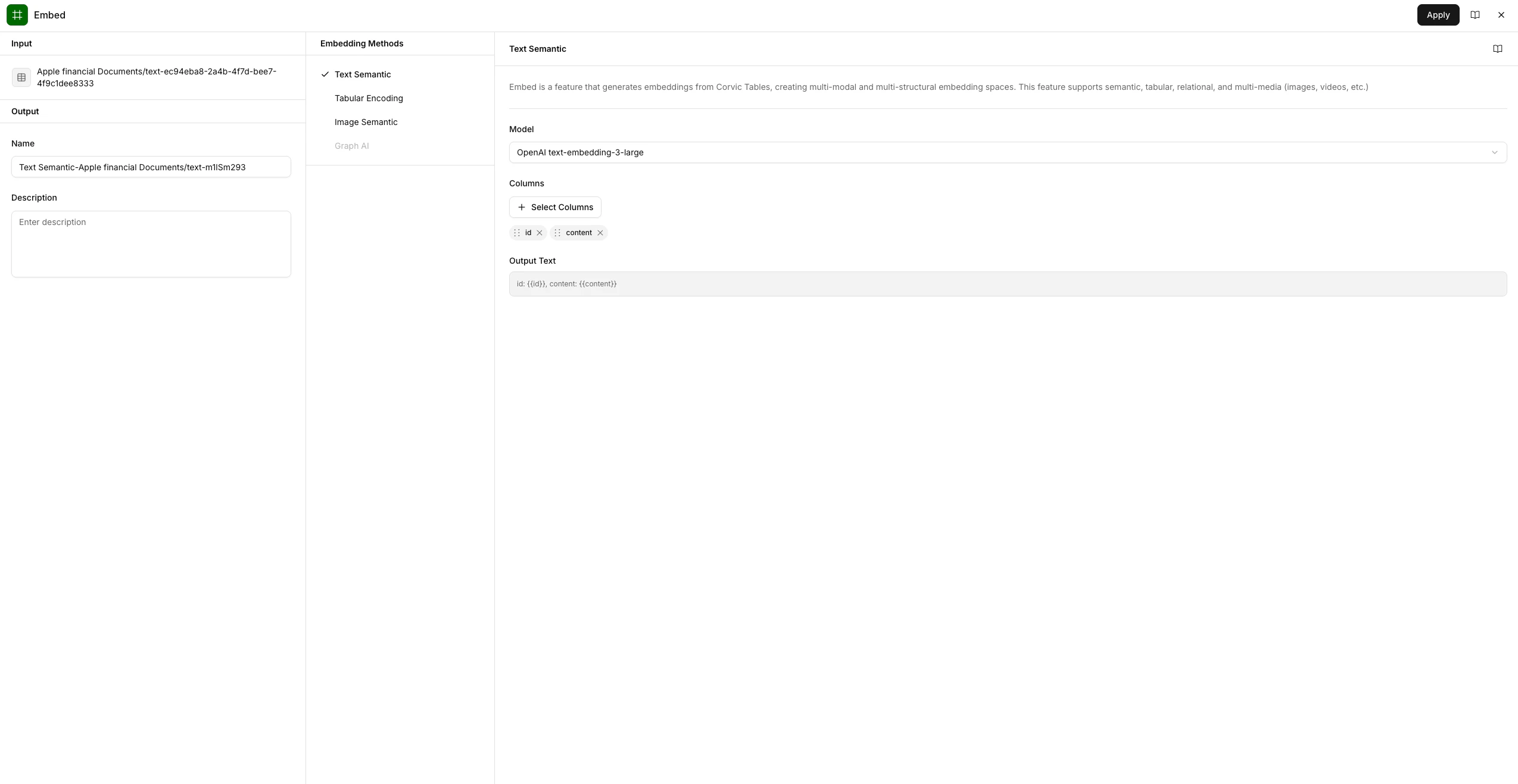
Create Agent
The Create Agent action is used to build an agent powered by space embeddings from your data sources. This action can only be applied to Space assets. Provide a descriptive name for your agent that reflects its functionality, and select a completion model to get started.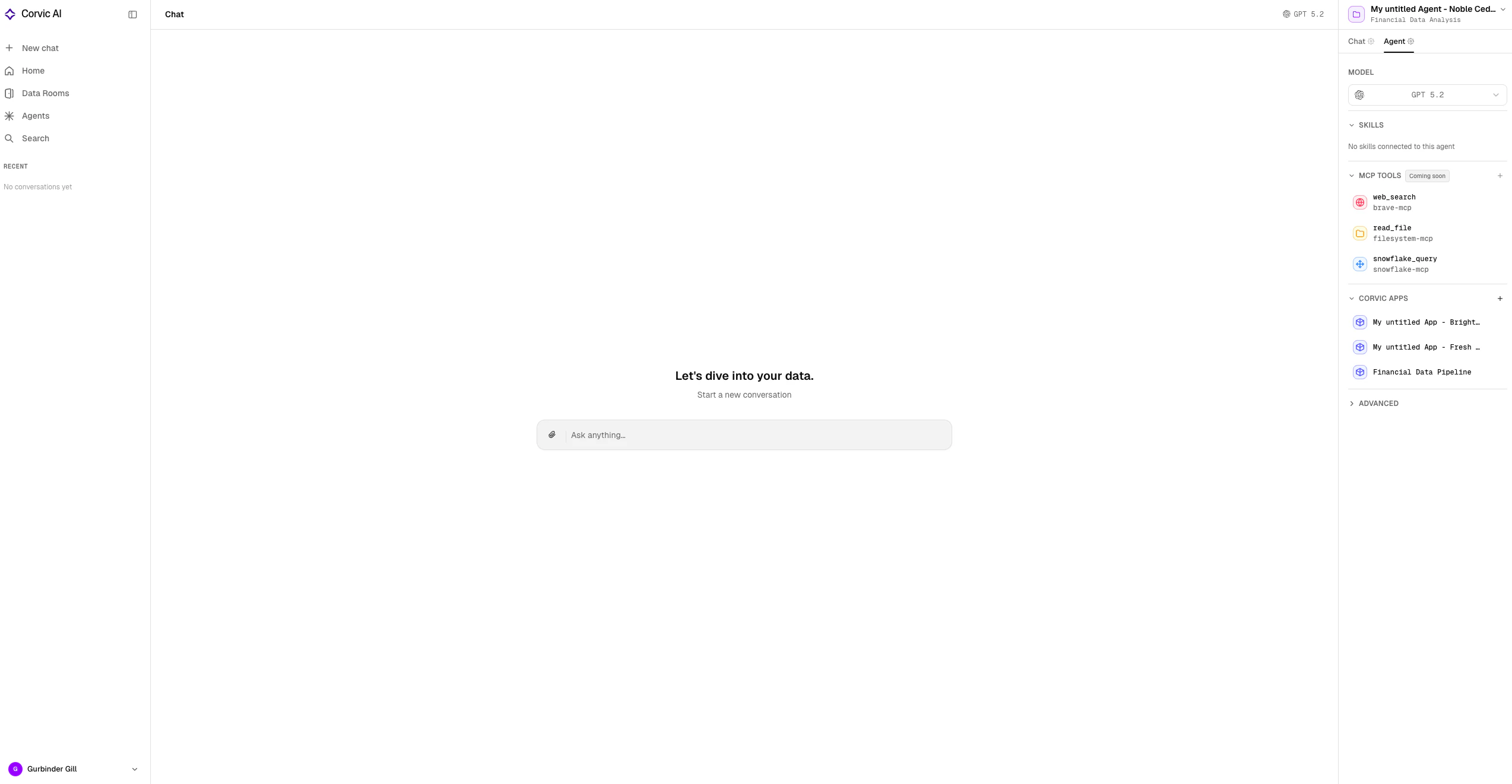
Related Documentation
Playbooks
Automate recurring, multi-step work that reads from your workflows.
Exploration & Workflows
How agents build workflows for you automatically.
Builder Chat
The in-canvas assistant that builds workflows for you.
Action Reference
Every action available on the canvas.
Data Sources
Learn about uploading and managing data sources.